Index:
3. How to draw a perfect square (Line tool).
4. How to create a cube out of a square (Push/Pull tool).
5. How to measure distances (Tape measure tool).
6. How to use the Push/Pull tool on a vertical plane.
7. How to make a squared hole.
8. How to draw circles, cylinders and circular holes.
How to draw circles, cylinders and circular holes.
In this section, you’ll learn how to use the «Circle» tool.
First of all, we are going to draw a circle in the middle of the prism of the picture. To do it, we’ll use two guides to mark the center of the face. Then, select the «Circle» from the menu on the right:
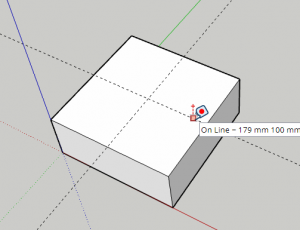
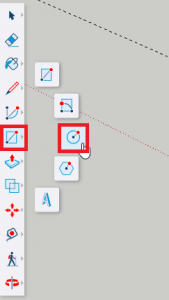
Then, click on the intersection of both guides, move the cursor for the circle to appear and type in your keyboard the radius of the circle you want to draw. Finally press enter.
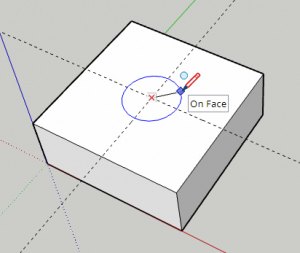
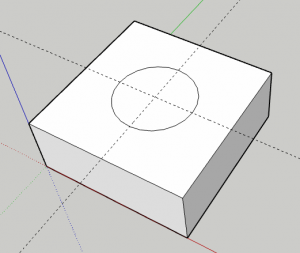
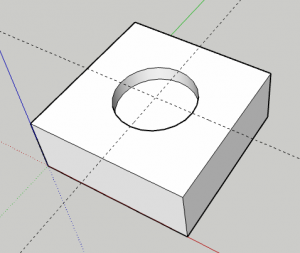
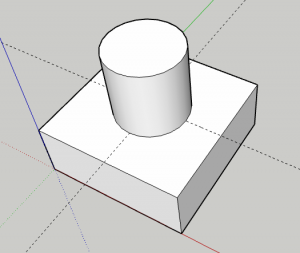
After that, you can use the «Push/Pull» tool to make a hole, pushing in, or a cylinder, pushing out.
Holes do not necessarily have to go through the entire object. The picture on the left shows a hole of 20mm in depth. On the right picture, a 100 mm cylinder has been created.
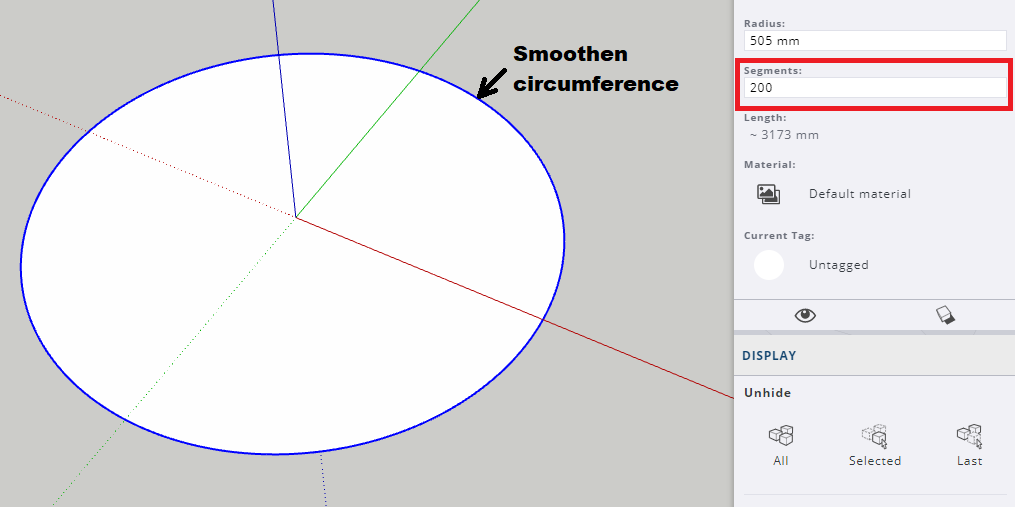
Important! some times you will realize circles are not smooth, because they are made of a number of segments. That effect is more visible for circles with long diameters, like the one below:
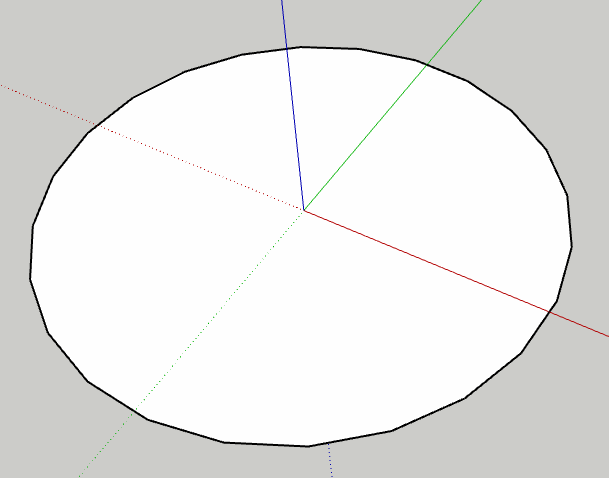
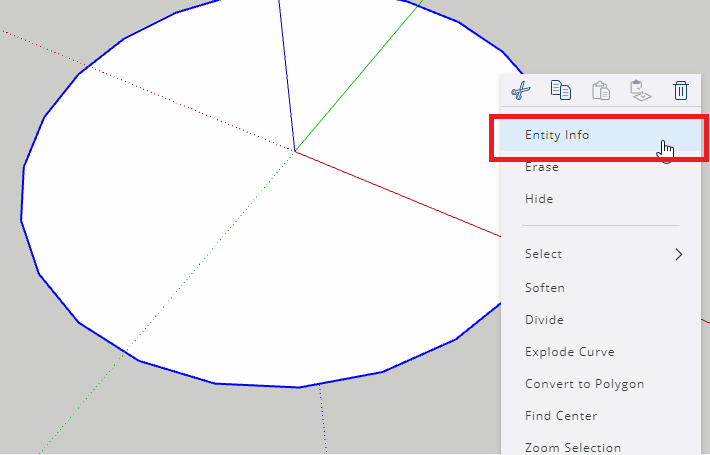
To fix that issue, you must select the «Select» tool (black arrow) and click on the circumference of the circle. Then, click with the right button of your mouse exactly on top of the circumference and select «Entity info»:
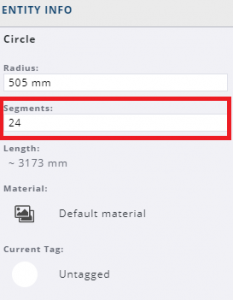
Finally, increase the number of segments until the circumference is smooth enough*.
*Bear in mind that there is a maximum number of segments for a given diameter, so you can’t increase the number of segments idefinitely.