Index:
3. How to draw a perfect square (Line tool).
4. How to create a cube out of a square (Push/Pull tool).
5. How to measure distances (Tape measure tool).
6. How to use the Push/Pull tool on a vertical plane.
7. How to make a squared hole.
8. How to draw circles, cylinders and circular holes.
How to draw a perfect square (Line tool).
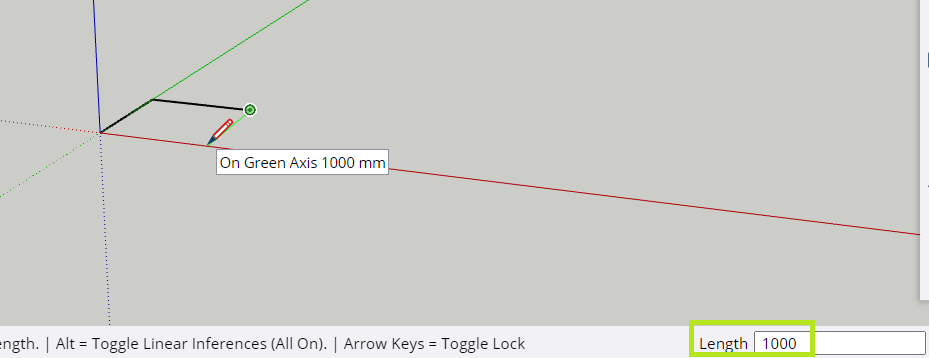
Select the «Line» tool and click on the origin (where the three axes meet). Then, place the pencil on the green axis (not clicking again!). You will see how the length of the line is shown in the right-bottom part of the screen (green rectangle) as you move the mouse.
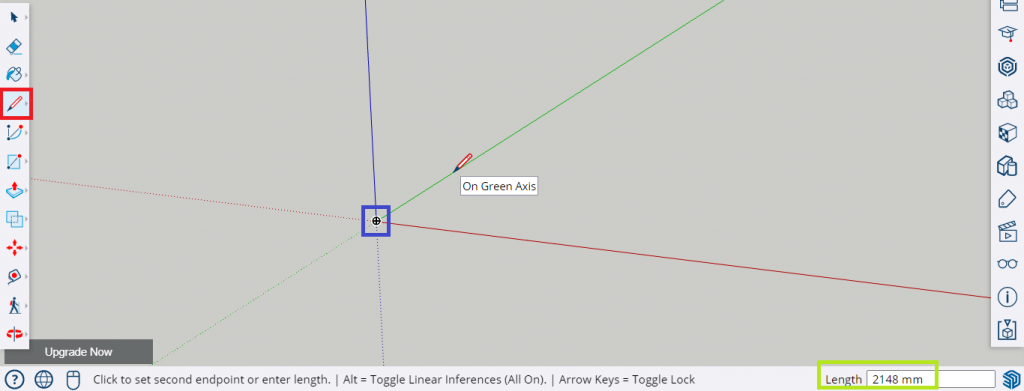
To draw a line with a specific length is let the cursor still and type the number (1000 in this case) directly with your keyboard. After that, press the enter key to draw the line.
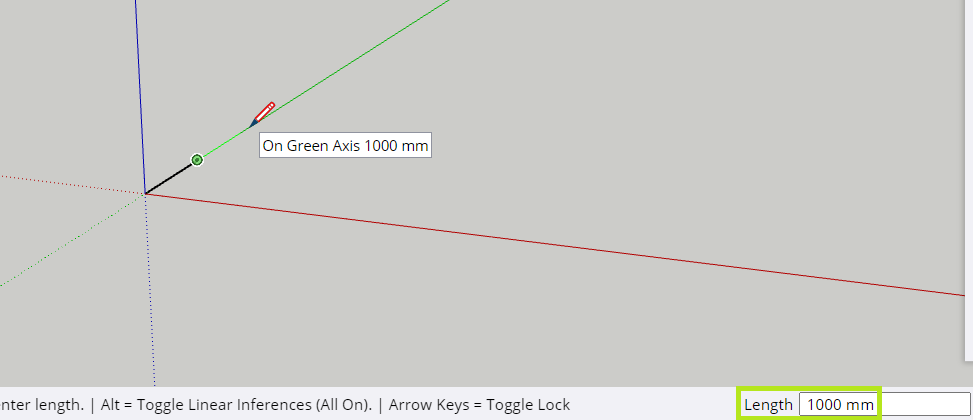
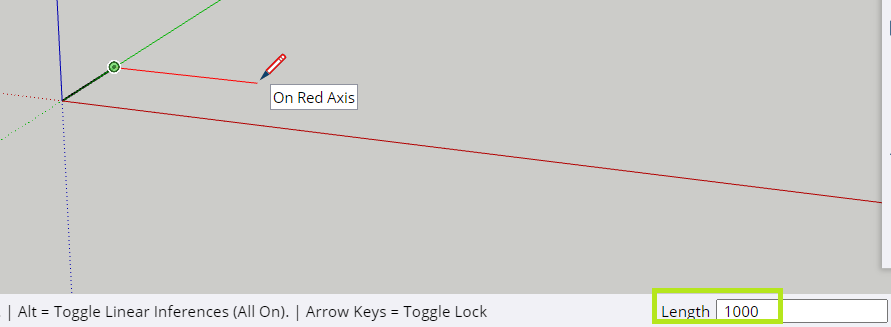
Then, repeat the same steps to draw the other three sides of the square. Realize that before pressing enter the line will get the colour of an axis (red, green or blue) if it is parallel to that axis. That way, you can make sure that you are drawing perfectly parallel lines.
In this case, the second side of the square must be parallel to the red axis:
The third side must be parallel to the green axis:
And the last one is just over the red axis.
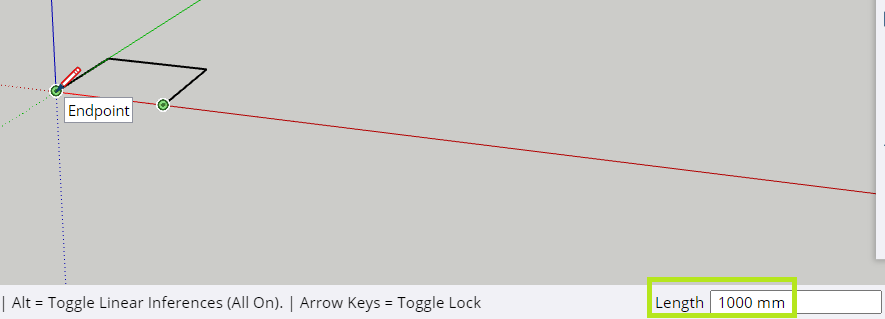
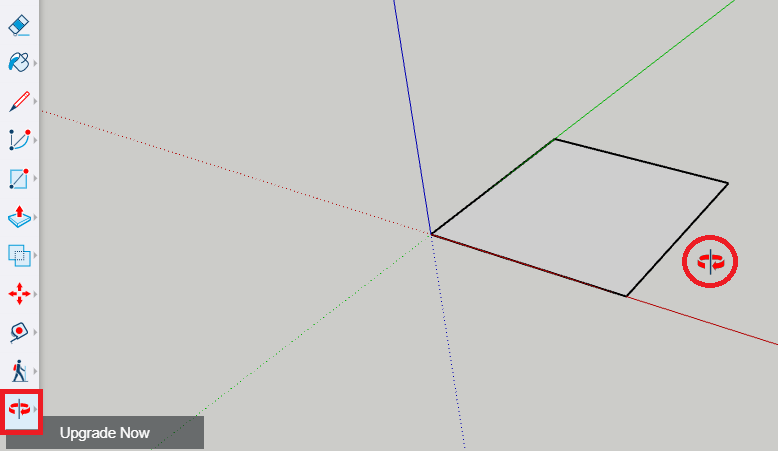
And this is the final result. You can take the «Orbit» tool to change the orientation of the camera.