Lesson 4:

Attach a file.
Apart from writing messages, email services allow you to send files of different types. The files that are sent with an email are called attached files, which can be:
- Images.
- Pdf documents.
- Text documents(a word file, for instance).
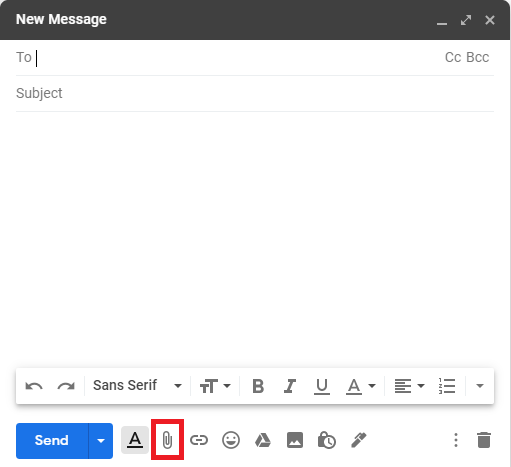
In order to attach a file that is saved on your computer, you just have to click on the paper clip symbol, boxed in the image below, and then select the file you want to add:
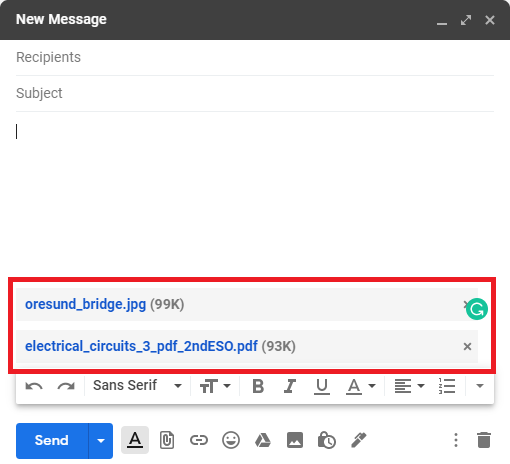
In the example below two files have been attached, one picture and one pdf file:
Crear un enlace a una página web.
As we have already seen on the first page of this unit, each web page has a corresponding web address (which is also called a URL). In many cases it is useful to create a link to a webpage so that anyone can access that page in a simple and fast way.
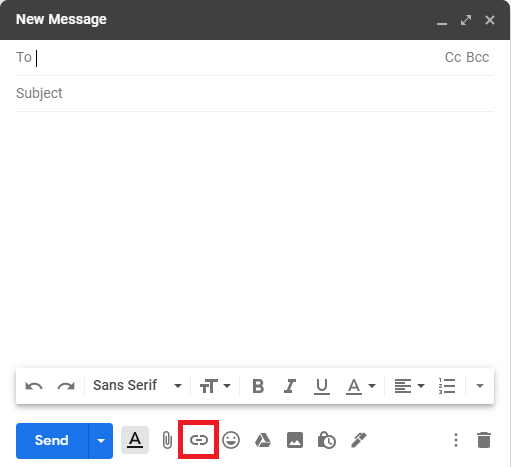
If you want to add a link to an email, you have to click on the button boxed in the image below:
A window will then open, where you will have to fill in two fields:
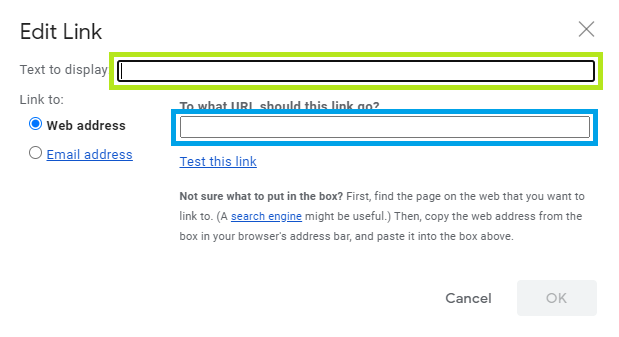
- In the field boxed in green we will have to write the word or words that we want to see in the link of the email.
- In the field boxed in blue we will have to write the web address (URL) of the webpage to which the link must lead.
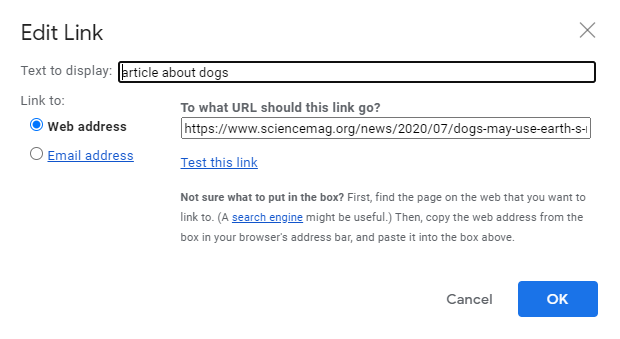
Let’s see an example. Imagine that you want to email a friend an interesting article that you have discovered on the internet about how dogs orientate themselves thanks to the magnetic fields of the Earth. The web address of the article is: https://www.sciencemag.org/news/2020/07/dogs-may-use-earth-s-magnetic-field-take-shortcuts and you want the link that leads to that page to have the words article about dogs. In that case, the fields should be filled in like this:
And when you click OK, the link will appear in the body of the email:
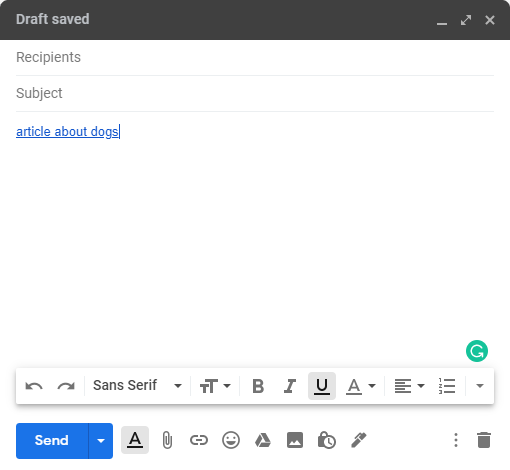
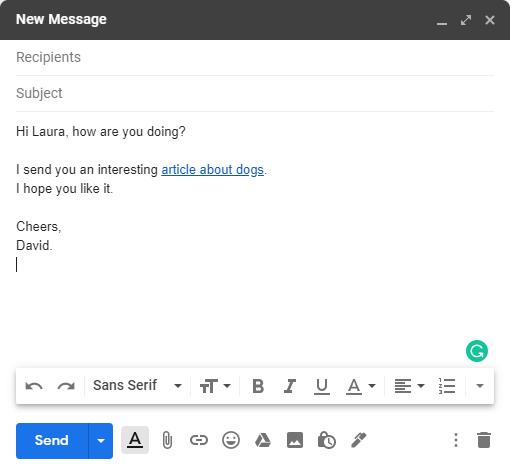
Then, it would only be necessary to finish writing the message, for example: